
Call with one click
You click the handset and the student answers without setting up a microphone - clean sound, mute at hand, you just press and talk.
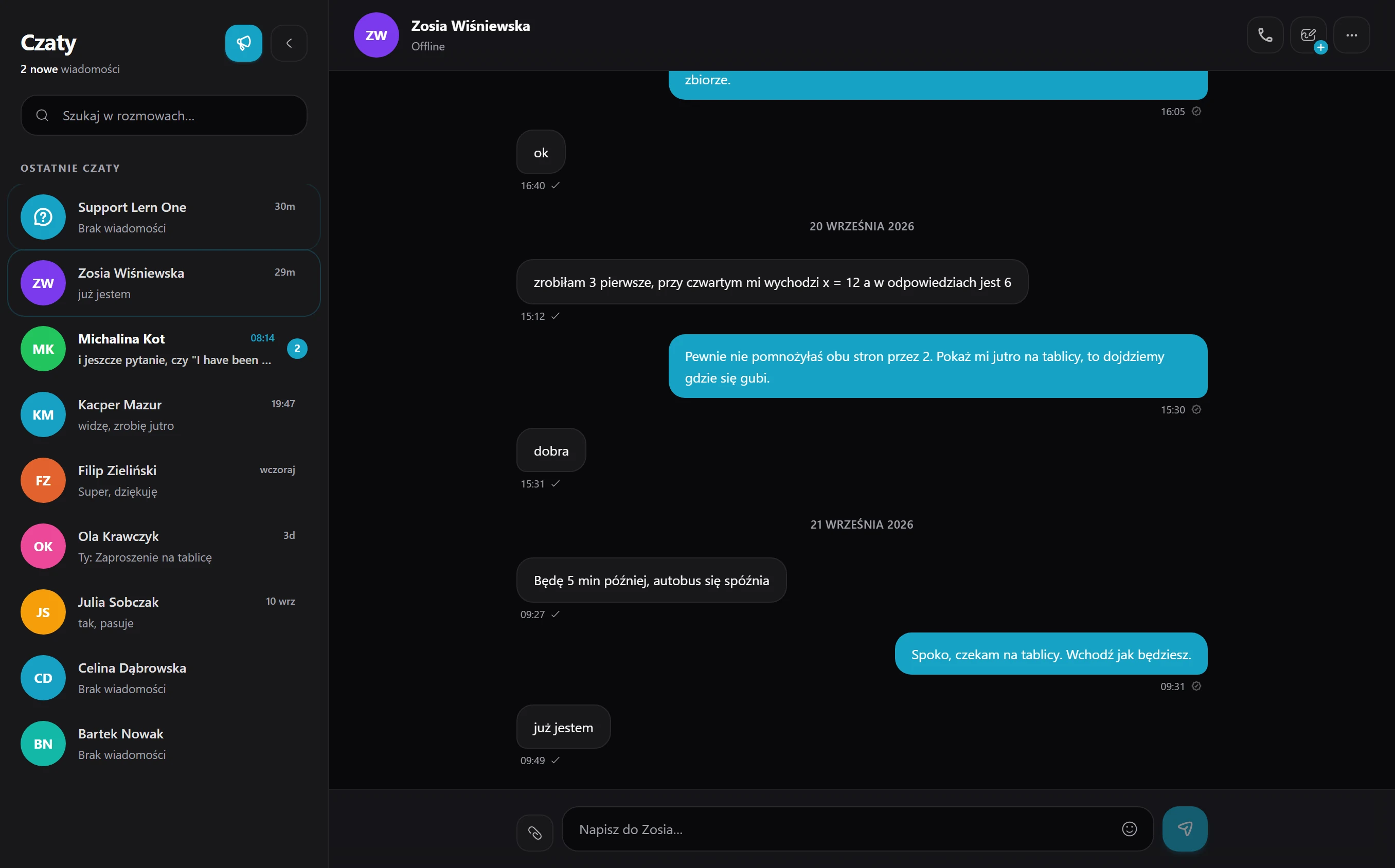
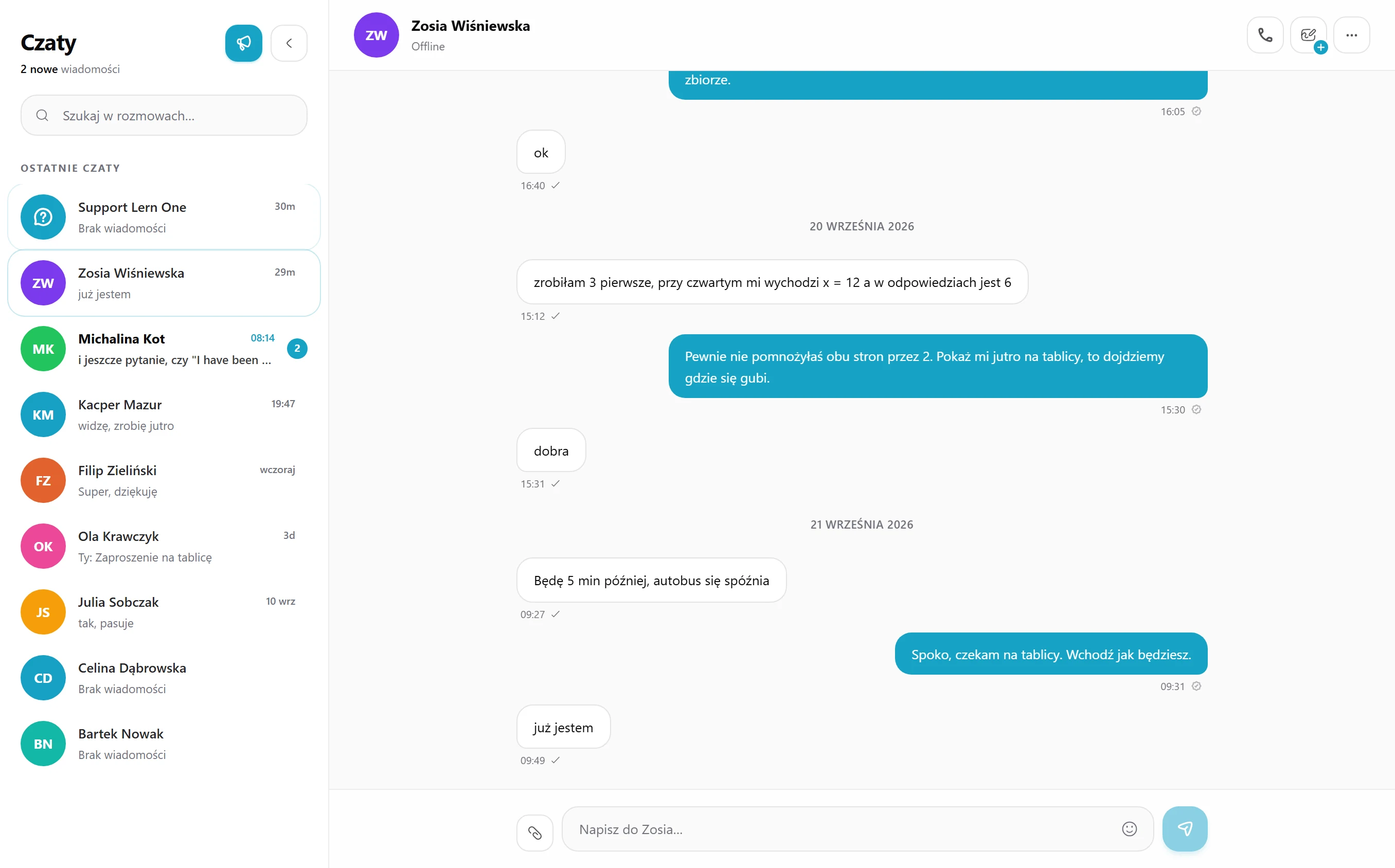
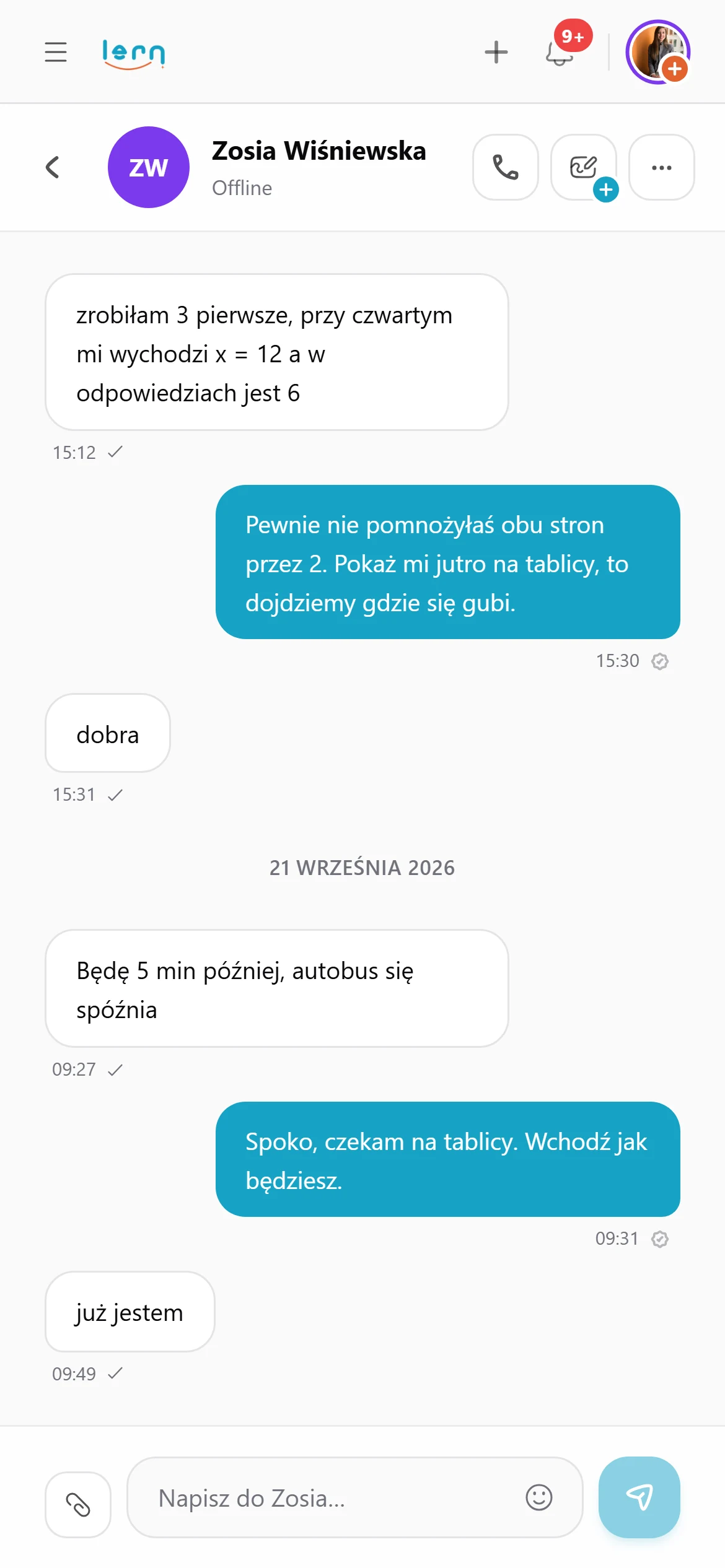
Messages, voice and video with the student happen in a single window, so during the lesson you no longer jump between five messengers.
14 days of full access, free, no card
You click the handset and the student answers without setting up a microphone - clean sound, mute at hand, you just press and talk.
When text isn't enough you turn on the camera, and when the student gets lost in an exercise you show them your screen.
You click an image and it opens full-screen, and with the arrows you flip through all the photos sent in that thread.
You drag PDFs, photos and notes straight into the chat window, where they stay in the thread ready to download at any time.
Every message is saved with the student, so you return to a conversation from six months ago in two seconds.
You switch to another tab and the call keeps going in a small window in the corner, with mute and hang-up always at hand.
In the side panel you have a list of conversations - you click a student and open the thread with the full history so far.
You type, call, turn on video, or share your screen - all in the same window, without opening more apps.
You open the board without breaking the call, and one click starts recording the whole lesson - the file lands straight on your drive.
After hanging up you keep the whole set: messages, files and call duration, which you return to like an email inbox.
Jump from chat to the board and the call keeps going.
Your student logs in and you're already talking.
Stored in Poland and the EU. GDPR, no tricks.
Three typical situations where tutors put this to work.
You teach by voice and don't want to juggle Zoom, Messenger and email. Call from the same window you chat in, and the call keeps going when you open the board.
When your student gets lost in a problem, turn on your camera or share your screen and show the solution. It all happens in the browser, with nothing to install on either side.
Your student sends a photo of the problem they're stuck on, and you reply when you have a moment. Files and messages stay with the student, so you can find them even six months later.
Here's how it usually goes without Lern.
Data flows between modules on its own, so you never retype anything.
No. Voice and video calls run in the browser, in the same window as the chat. Your student logs in and picks up the call.
Yes. During a call you can turn on your camera or share your screen whenever you want to show something.
No. You move between chat, the board and other tabs, and the call keeps going in a small window in the corner.
Messages are stored on servers in Poland and the EU. The full history and shared files stay with the student.
Text, voice and video in one window - nothing to install.
Get started for free