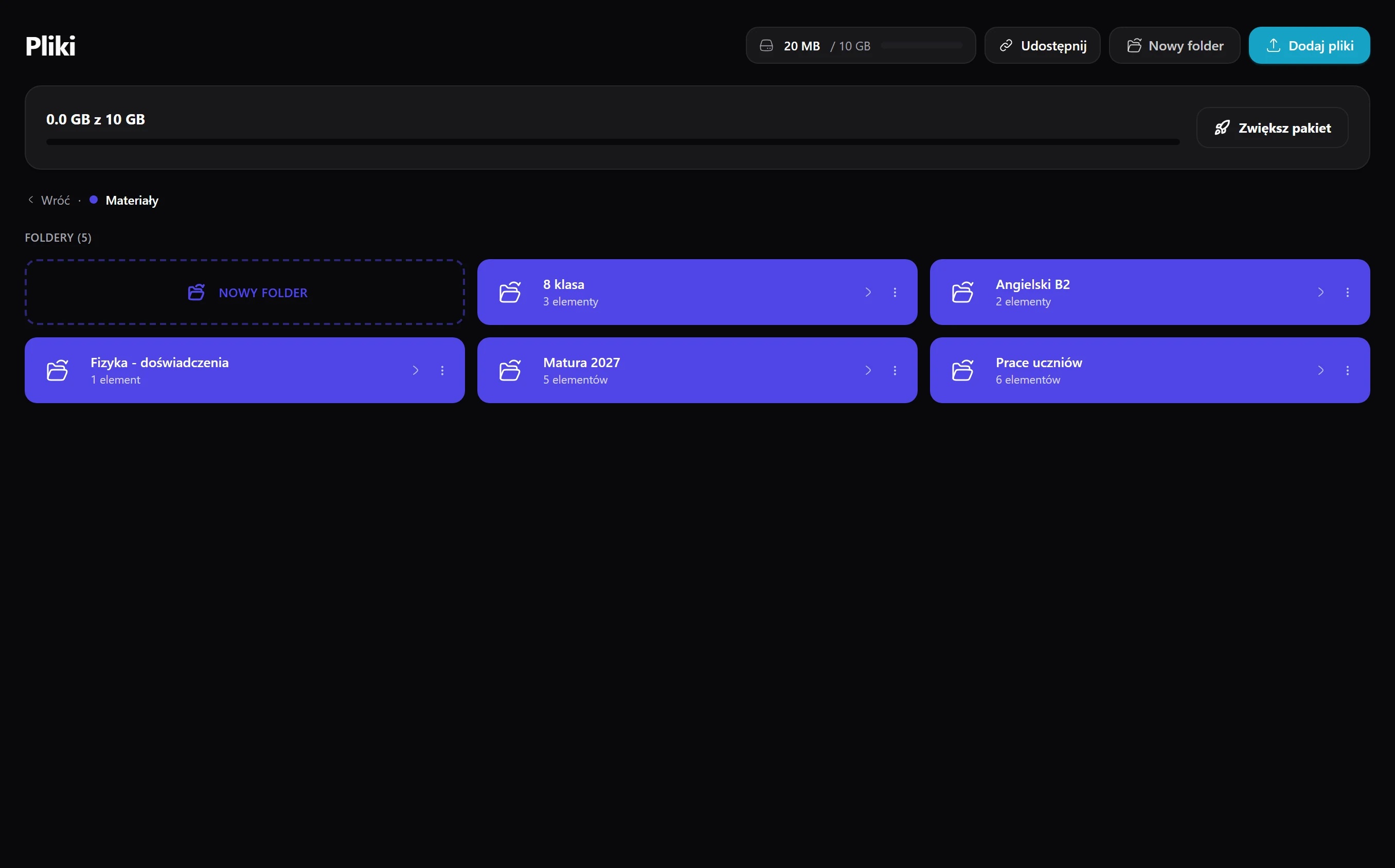
Drag and drop
You drop files anywhere on the page, even twenty at once, and a bar shows in real time how much has already uploaded.
From the start you have two folders - Materials for sharing and private Documents - into which you drag, drop and preview files right in the browser.
14 days of full access, free, no card
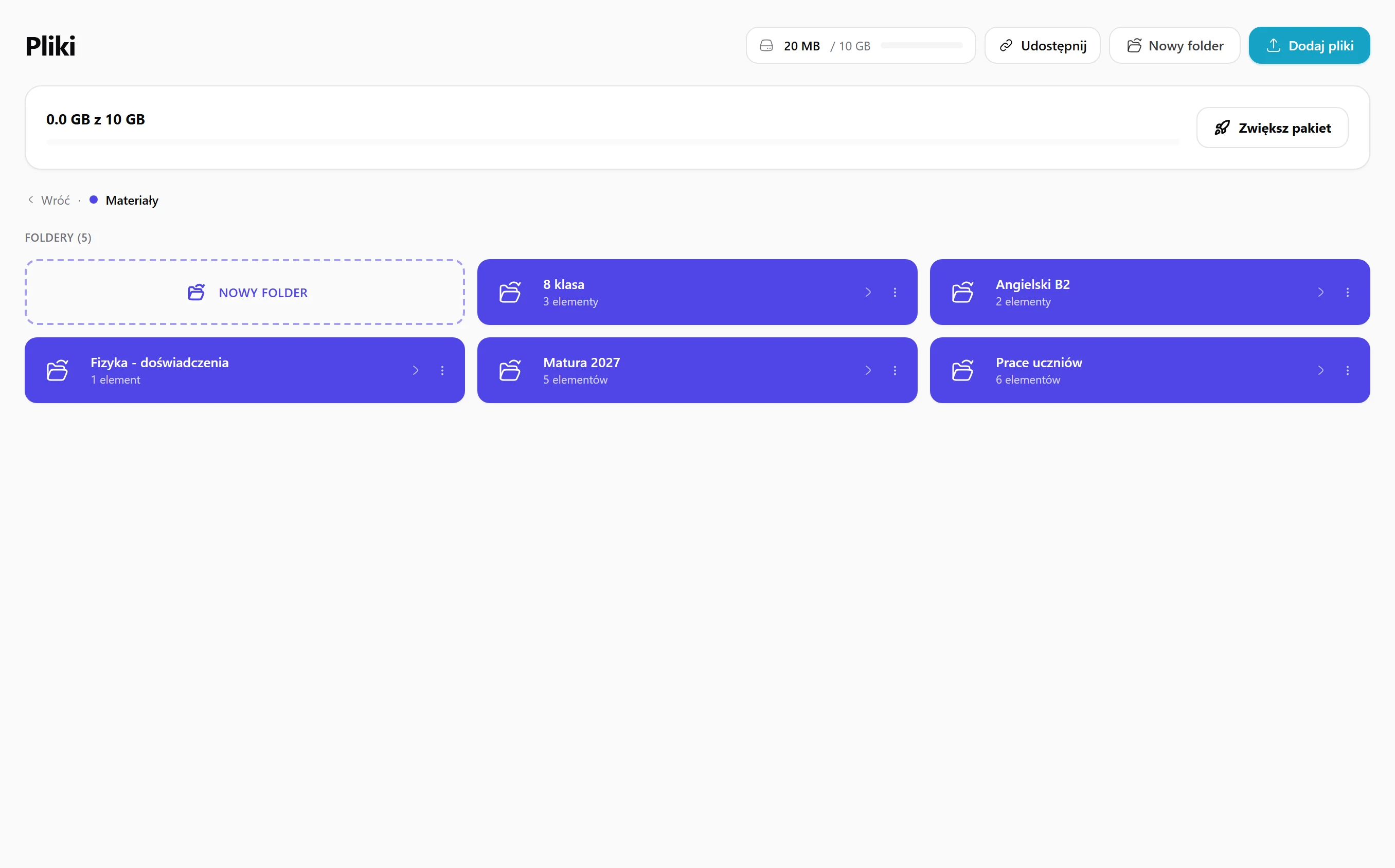
You drop files anywhere on the page, even twenty at once, and a bar shows in real time how much has already uploaded.
You open PDFs, images, video and audio straight in the browser, without downloading them to disk and without any converters.
You arrange a folder tree like on a desktop - move, rename and delete whole folders with their contents - and the path at the top always shows where you are.
You select files with checkboxes and with one click delete them in bulk, download them zipped together or move them to another folder.
Depending on your plan you have 500 MB, 2 GB or 10 GB, and we watch the space ahead of time, so you never exceed it unknowingly.
Without your consent no one opens any file, and you share it with chosen students in one click.
You drag files from the desktop straight onto the browser window or pick them from a list - up to twenty at once.
You build your own structure and names - "Maths 2024 / Class 8a / Tests" - exactly the way you think about your materials.
You drag a file from the drive onto an open board, where it instantly becomes an image visible to both sides.
You send a file to a chosen student or drop it into the chat, where it stays in the thread ready to download when the student needs it.
A contract won't land with a student by mistake.
Another tutor can't get in, even with the link.
The same folders as on your laptop.
Three typical situations where tutors put this to work.
You have worksheets, past papers and notes from several years. Organise them into folders the way you think about them, say “Matura / Functions / Problems”, and find anything in seconds.
Besides materials, you keep documents: invoices and contracts. They live in a separate area, so you won't send one to a student by mistake.
You prepare a lesson on your laptop and teach it on a tablet. Files are in the cloud, so you have the same folders everywhere.
Here's how it usually goes without Lern.
Data flows between modules on its own, so you never retype anything.
It depends on your plan: 500 MB, 2 GB or 10 GB. You can see how much space is left before you upload more.
PDFs, Word documents, images, video and audio. Previews open in the browser without downloading.
No. Only you can see your files until you share them with a chosen student.
Yes. Drag the file onto an open board and your student sees it right away.
Drag a file from your desktop and it's ready to send to a student.
Get started for free